WooCommerce plugin · Request a quote · Catalogue mode · Free

Demfilz Quote Cart for WooCommerce

Some products do not have one price. Freight, volume, site conditions and account terms change it, so trade, wholesale, B2B and made-to-order stores answer with a quote. This plugin gives WooCommerce the whole quote, from request to payment, free: customers add products to a quote list and send a request, you price it in the normal order screen and send it, and they accept and pay online at exactly the total you quoted, or decline.

v1.0.0 · WordPress 6.3+ · WooCommerce 8.3+ · PHP 7.4+ · free · on the official WordPress.org plugin directory

A quote list with options, quantities and a note per line Priced in the WooCommerce order screen, sent with one tick Accepted and paid on Pay for order at the quoted total

A quote list that works like a cart

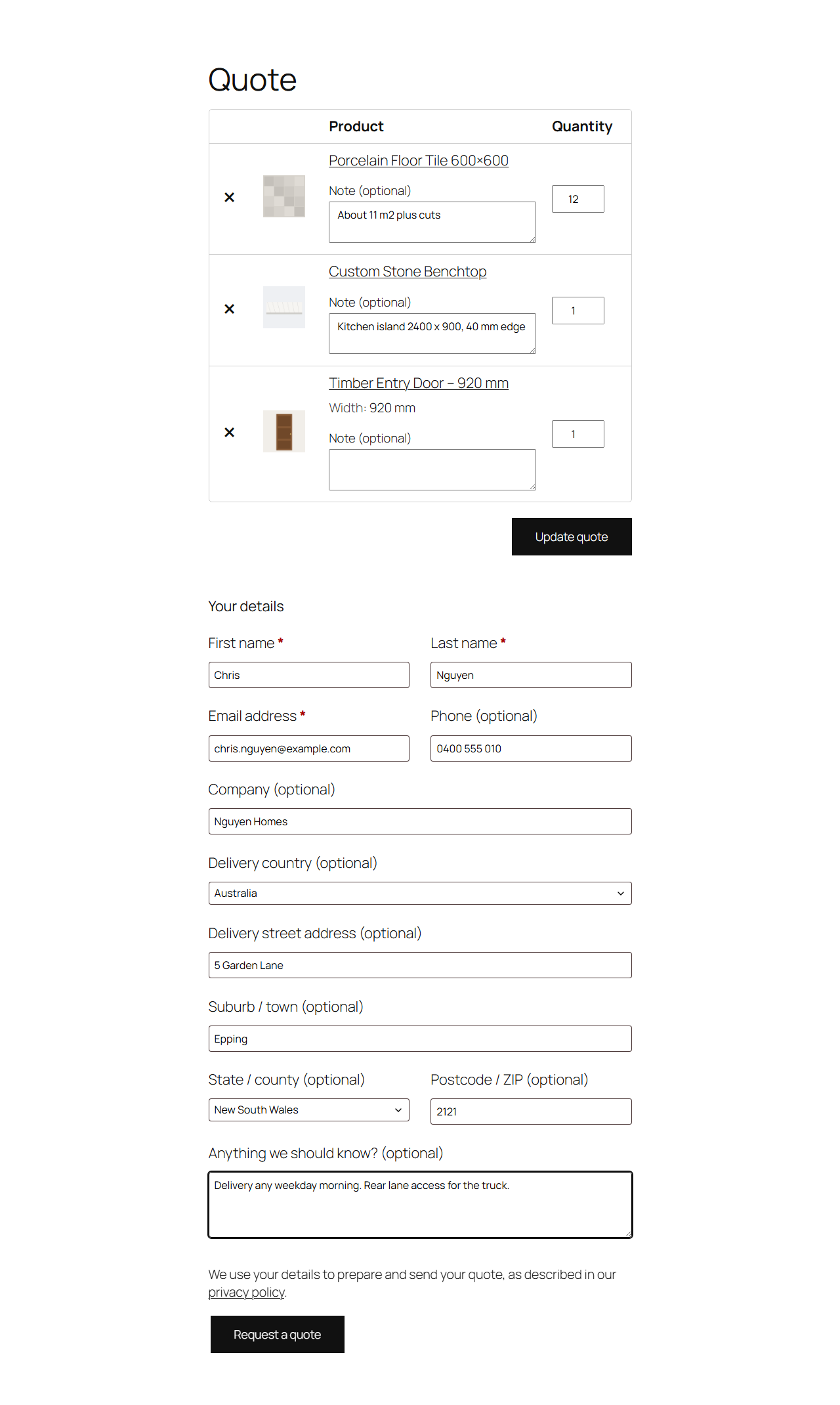
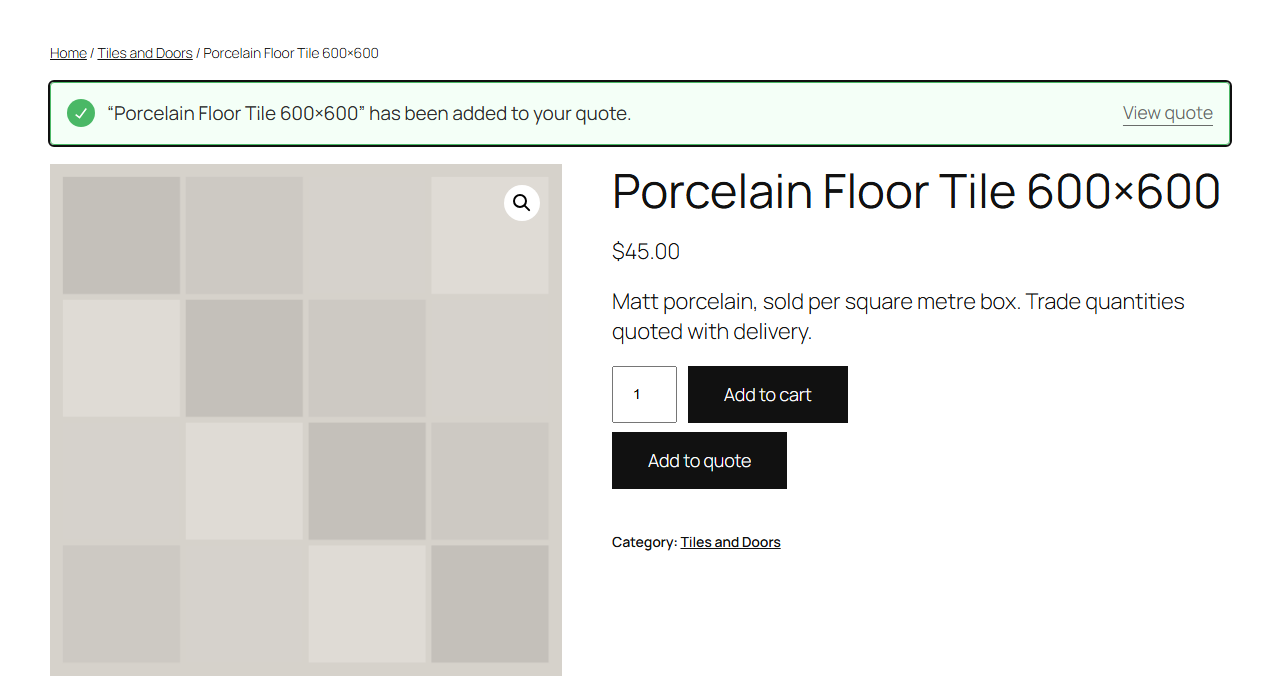
Add to quote sits next to Add to cart, or replaces it, on product pages and in product grids. On a variable product it is ready once the shopper has chosen the options, so the quote is for exactly the size or finish they want. The quote page, created when you activate the plugin, lists the products with editable quantities and a note per line, and can show today's prices with an estimate. Underneath is the request form: name and email address, plus phone, company and delivery address, each off, optional or required. Logged-in customers have their saved details filled in, and guests can be allowed or asked to log in. Spam is kept out without a captcha: a hidden honeypot field, five requests per hour per IP address and an hourly ceiling for guest requests across the site.

Every request is a WooCommerce order

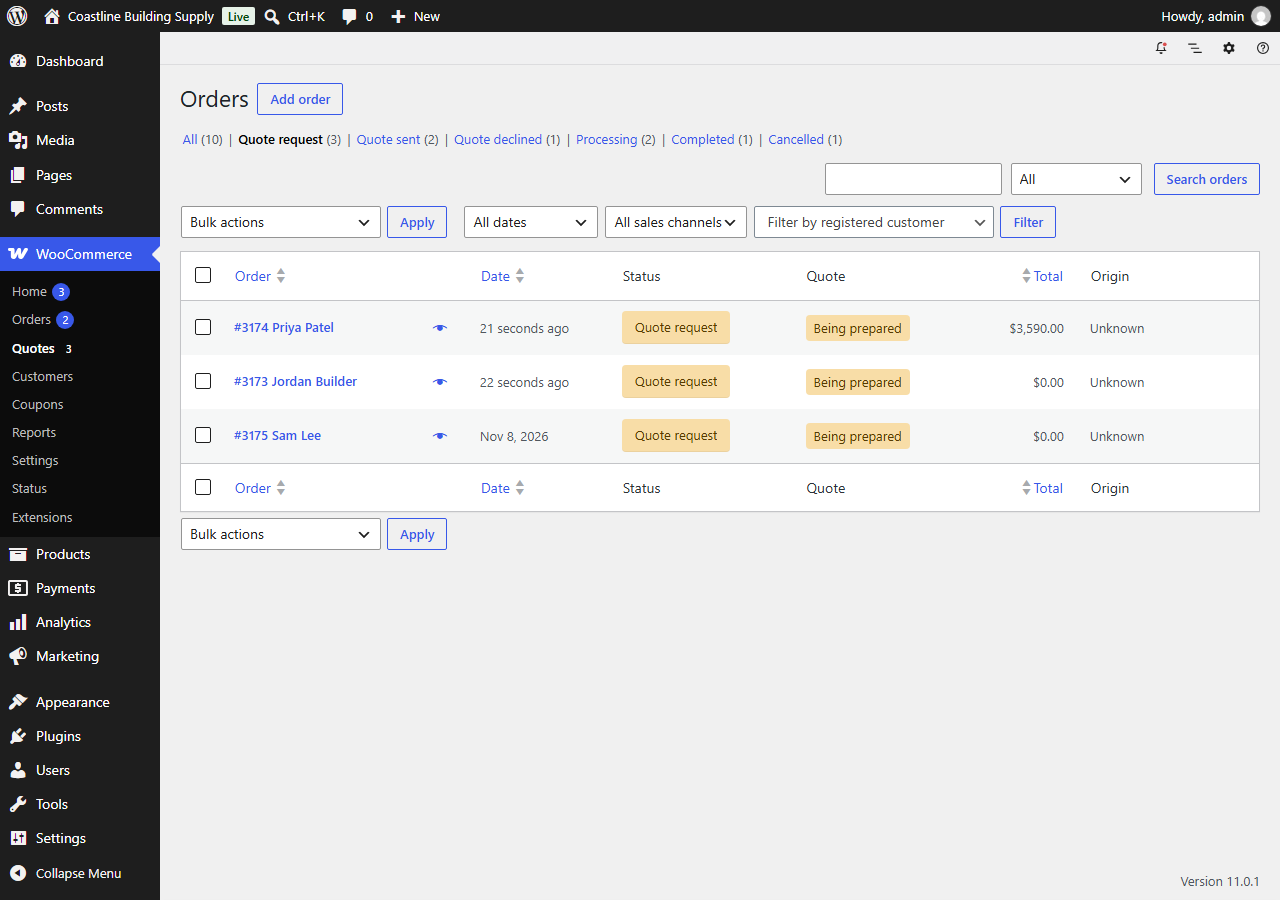
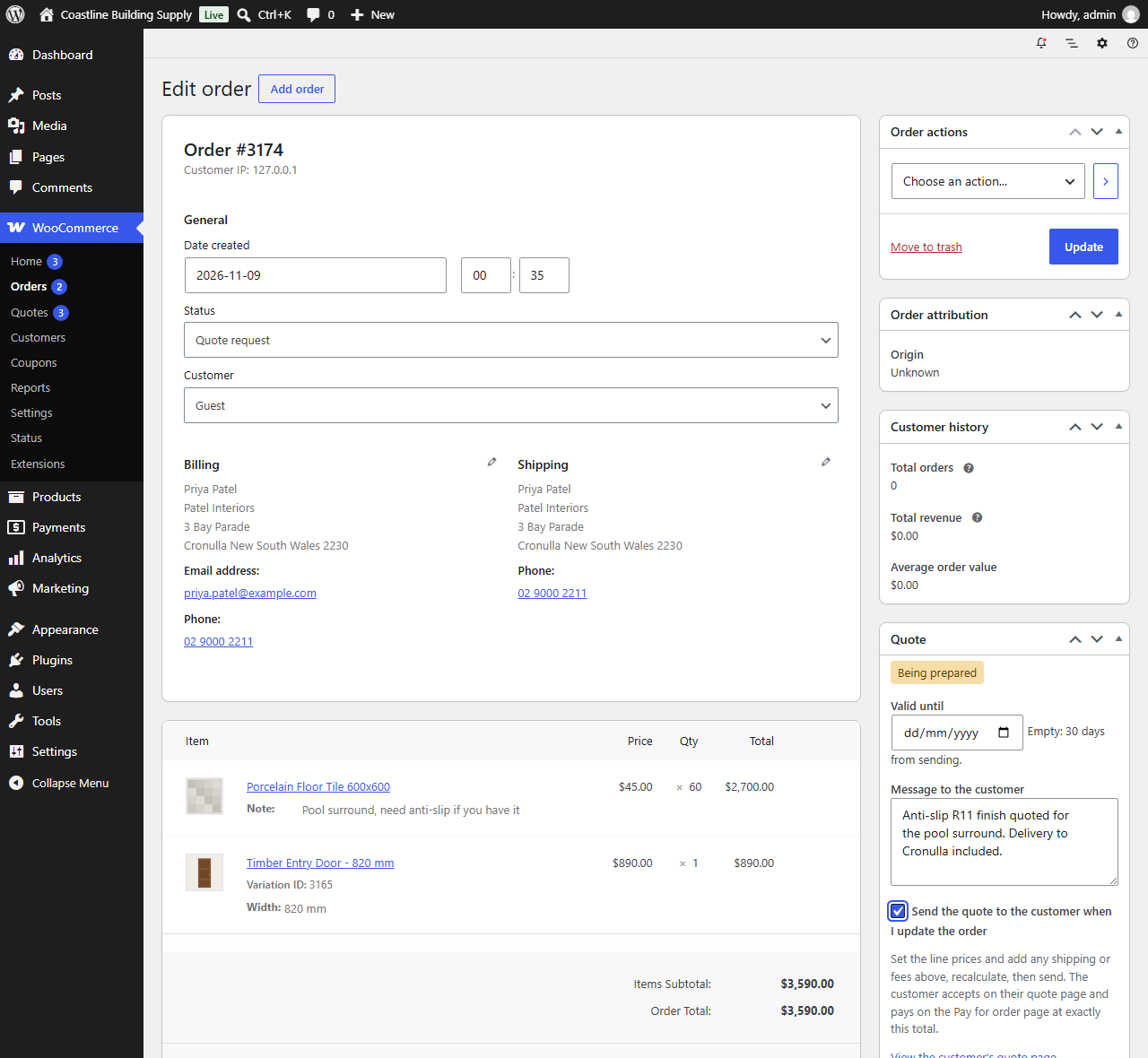
A request arrives as a WooCommerce order with the status Quote request, with a Quote column on the orders list and a WooCommerce → Quotes menu that shows how many are waiting. You price it the way you already edit orders: change the line prices, add shipping, fees or a coupon, and recalculate tax. In the Quote box set the valid until date (30 days from sending by default) and a message to the customer, tick "Send the quote to the customer when I update the order" and click Update. The order action "Send quote to customer", or choosing the status Quote sent, does the same. Phone and email enquiries work too: create an order with Add order and give it the status Quote request.

Accept and pay at exactly the quoted total

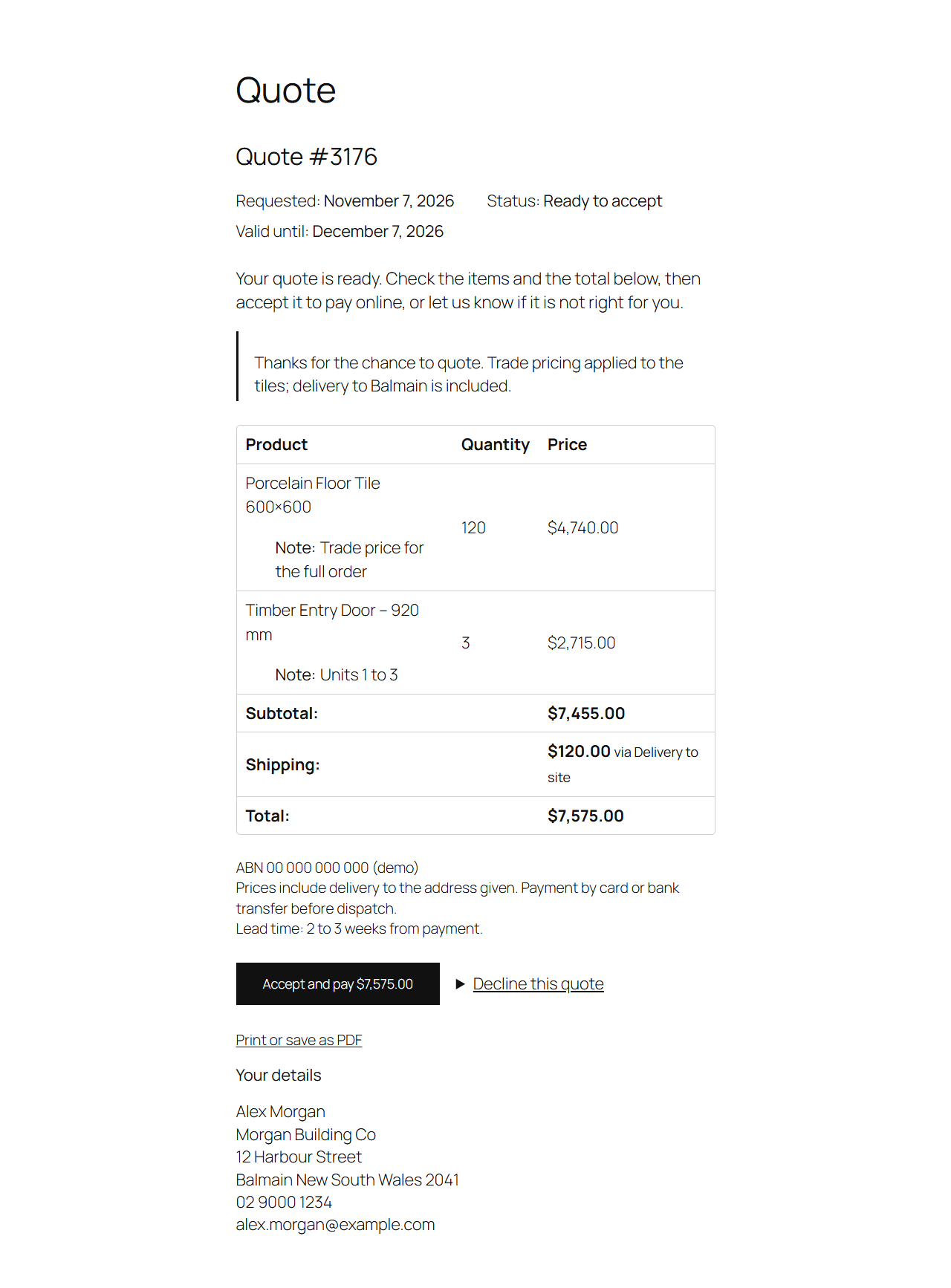
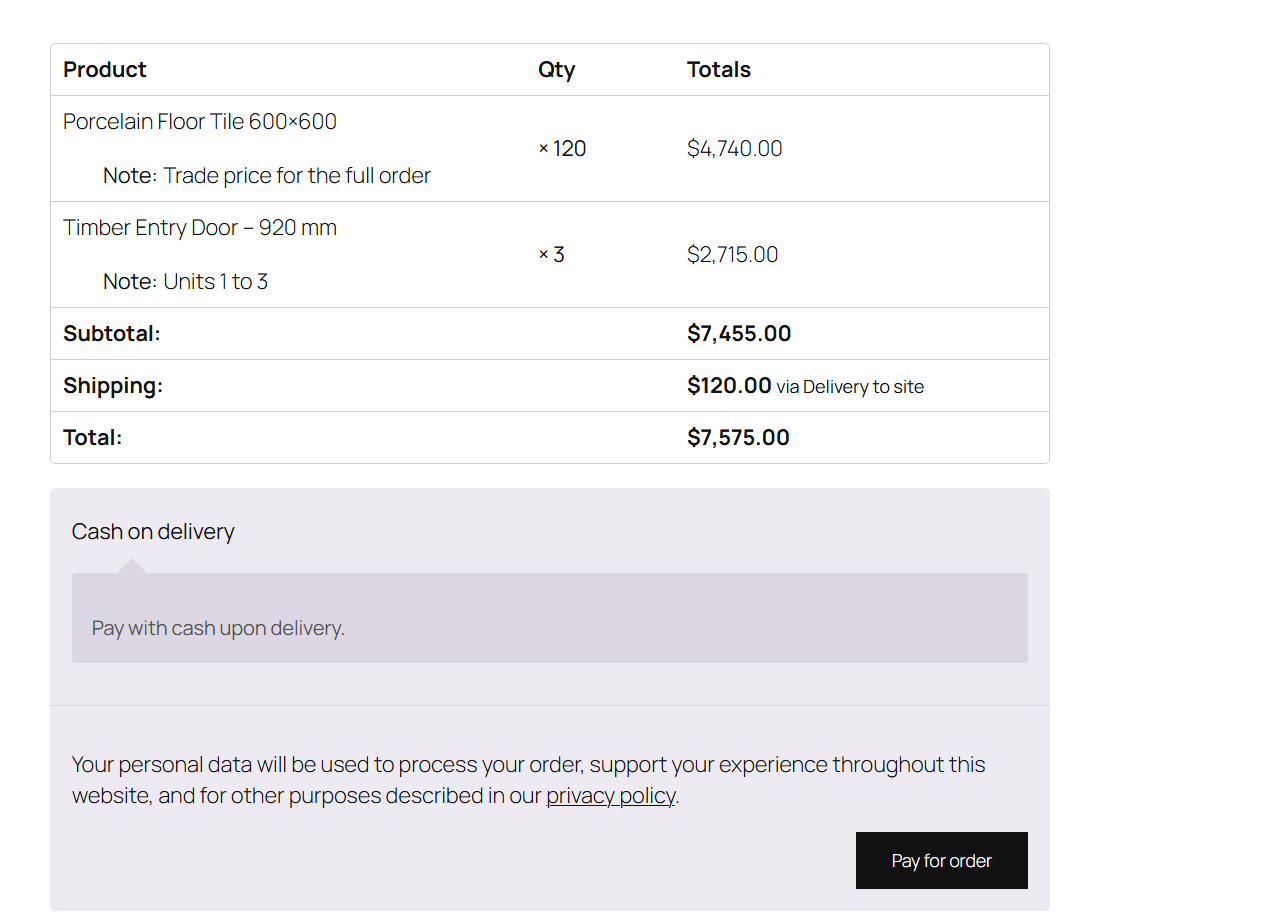
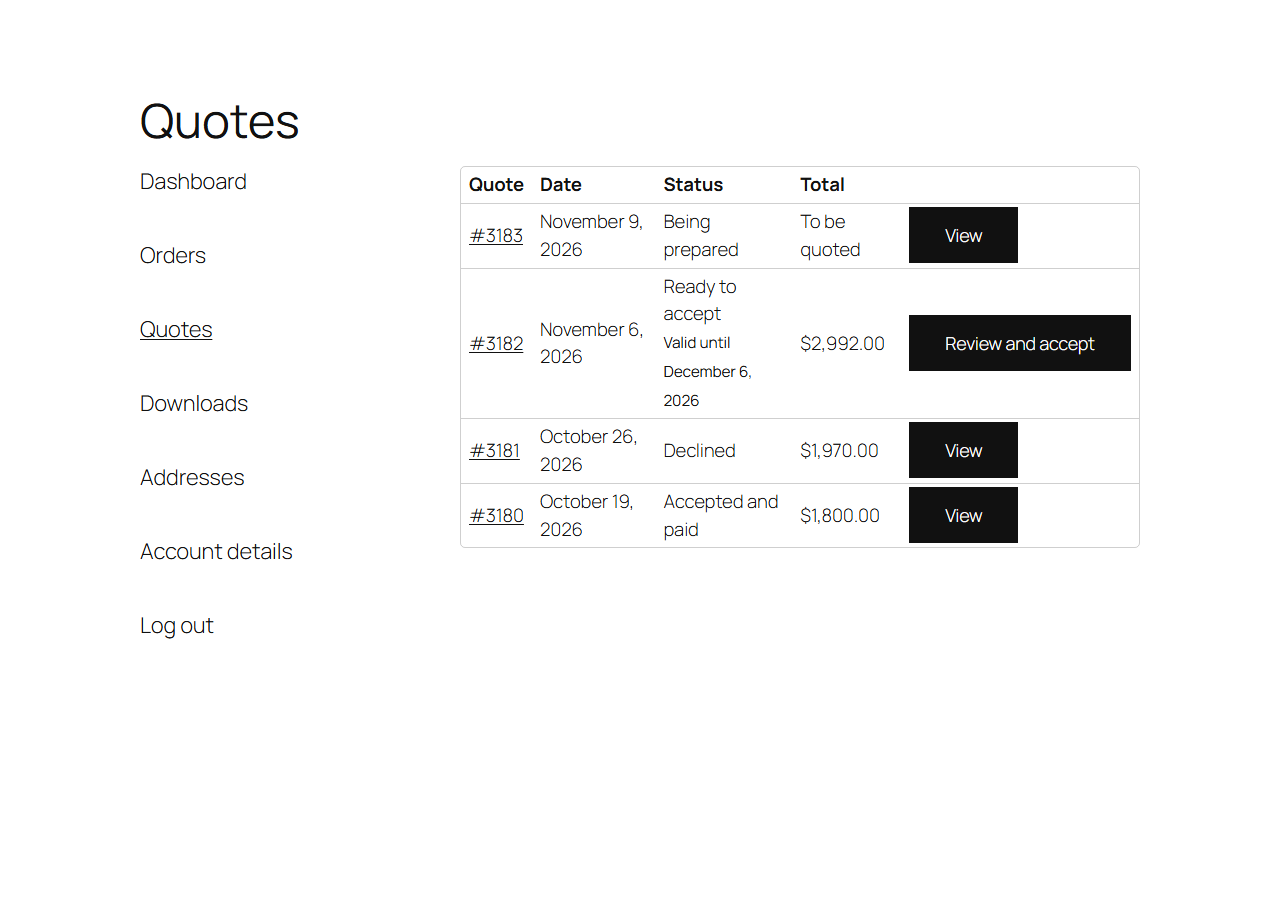
The customer's email links to their quote page: items, prices, totals, the valid until date, your message and your quote terms, with Accept and pay, Decline and a printable version they can save as a PDF. Accepting checks the stock for the quoted quantities and holds it with WooCommerce's stock reservation, then opens WooCommerce's own Pay for order page at the total you sent. Nothing is recalculated, so the shipping and fees you added stay put, and they can pay with any of your payment methods, including bank transfer. Or they decline, with a reason. An expired quote cannot be accepted; one click on Request an updated quote sends it back to you as a Quote request. My Account → Quotes lists every quote with its status, total and the next step.

Catalogue mode: hide prices and Add to cart

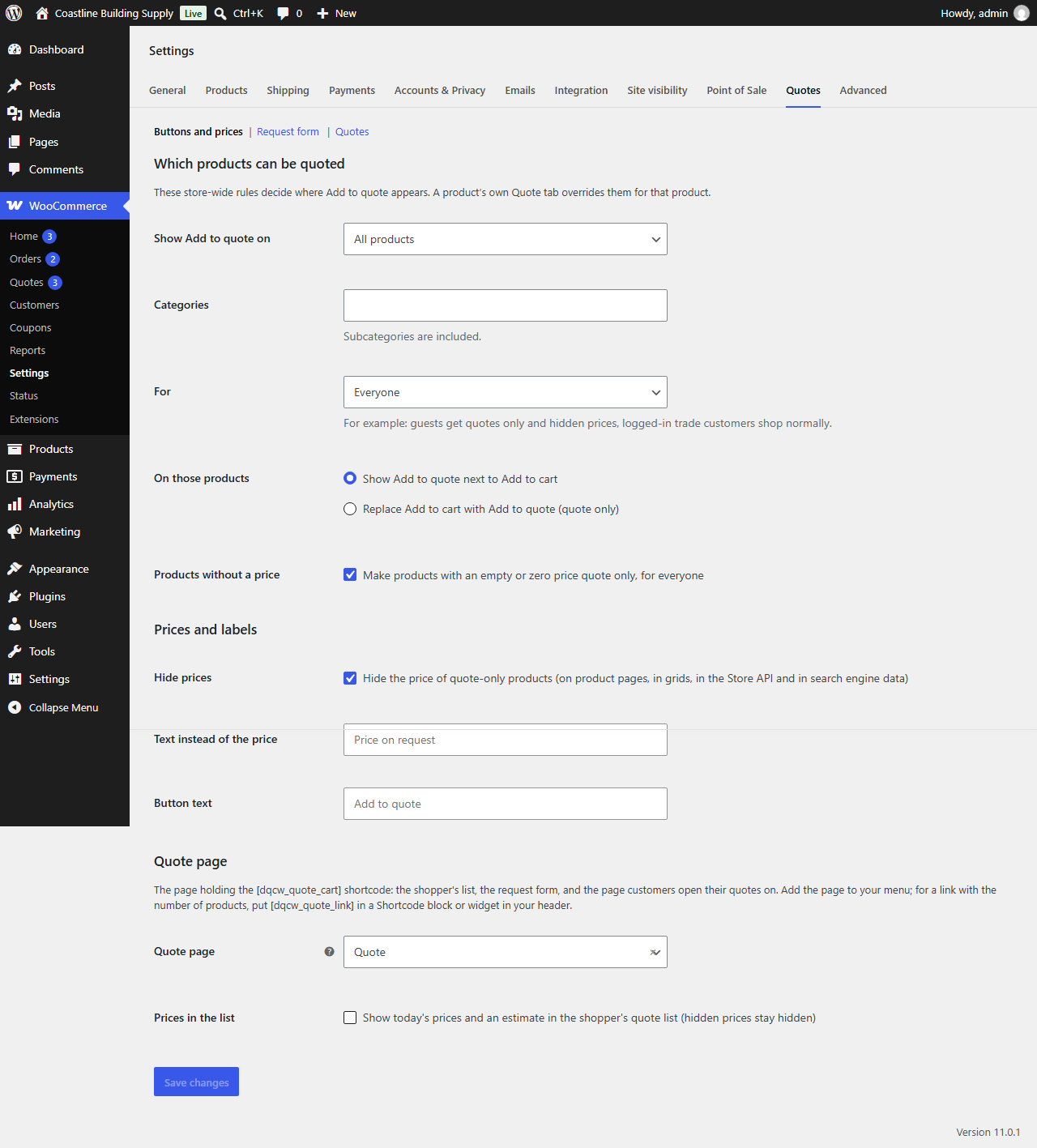
Show Add to quote on all products, on chosen categories or product by product, for everyone, for guests only or for logged-in customers only. Set those products to quote only and Add to cart disappears, and is refused at every storefront add to cart route: the product form, add to cart links, AJAX and the cart and checkout blocks. With Hide prices on, quote-only products show your own text, such as "Price on request". Hidden prices are also kept out of variation data, the Store API and the product's structured data for search engines, and price filters are switched off while prices are hidden, so a price cannot be narrowed down by filtering. Products without a price become quote only automatically instead of showing nothing. A typical trade setup: guests ask for quotes and see no prices, logged-in trade customers shop normally.

Quotes stay out of your sales figures

Quote requests, sent quotes and declined quotes have their own order statuses and colours, and are left out of WooCommerce Analytics; an accepted quote counts once it is paid, like any order. Open quotes stay out of My Account → Orders until accepted, and accepted quotes waiting for payment are not cancelled by WooCommerce's unpaid order clean-up. Four WooCommerce emails cover the loop: New quote request and Quote answered for you, Quote request received and Your quote for the customer, each one editable, previewable and overridable in your theme.

Built to be trusted with your orders

Passes the WordPress Coding Standards with zero errors and zero warnings and is clean against the official Plugin Check. An automated suite of 187 checks passes with High-Performance Order Storage on and off, and 71 browser checks pass on a block theme and a classic theme.

Nothing leaves your site

No external services, no tracking, no account. Quotes are ordinary WooCommerce orders in your own database, every admin save is checked for permission and signed with a nonce, and accept and decline are buttons on the quote page, never plain links, so email scanners cannot answer a quote by accident.

Light on the page, fine with caching

One small stylesheet and one small script, loaded only where they are needed, and everything works without JavaScript. Adding to the quote list works on page-cached product pages, the quote page sends no-cache headers, and the quote count link keeps itself right from a cookie.

How it works

From request to paid in four steps

1

Install and activate

Install it from Plugins, Add New by searching for "Demfilz Quote Cart" (or upload the zip), and activate it. WooCommerce must be active.

2

Check the settings

Under WooCommerce → Settings → Quotes. By default Add to quote sits next to Add to cart on every product, and products without a price are quote only.

3

Link the quote page

Add the Quote page to your menu, and put [dqcw_quote_link] in your header for a link with the number of products.

4

Price and send

Open a request from WooCommerce → Quotes, set the prices, tick "Send the quote" and click Update. The customer accepts and pays online.

Read the full setup guide →
Demfilz Quote Cart: a quote document with a dollar badge, and the tags Free, Accept and pay online, Hide prices and HPOS ready

Why it matters. A form that only collects an enquiry leaves you retyping the order, emailing a price and chasing payment by hand. Here the request is already an order, the quote is that order priced, and the customer pays it online, so the quote you send becomes the sale.

See it

From request to paid

Eight screens from the plugin, captured on a standard WordPress site with a sample store.

A porcelain floor tile product page with the notice that it has been added to the quote and an Add to quote button under Add to cart
Add to quote next to Add to cart on a product page.
The Quote page: three products with quantities and a note per line, an Update quote button, and the request form with name, email, phone, company, delivery address and a message
The quote list and request form.
The WooCommerce orders list filtered to Quote request, with three requests in the Being prepared state and the Quotes menu showing a count of 3
WooCommerce → Quotes: requests waiting to be priced.
Editing an order with the status Quote request: line prices and totals, and the Quote box with a valid until date, a message to the customer and the Send the quote tick box
Pricing a quote: the order screen with the Quote box.
The customer's quote page: status Ready to accept, a valid until date, the store's message, items, shipping and total, quote terms, an Accept and pay button and a Decline this quote link
The customer's quote page with Accept and pay.
WooCommerce's Pay for order page with the quoted items, the shipping line and the quoted total, a payment method and the Pay for order button
Pay for order at the quoted total.
The Quotes tab in My Account listing four quotes: being prepared, ready to accept with a Review and accept button, declined, and accepted and paid
My Account → Quotes.
The Buttons and prices settings: which products can be quoted and for whom, quote only or next to Add to cart, products without a price, hide prices, the replacement text, the button text and the quote page
WooCommerce → Settings → Quotes.
Download

Get Demfilz Quote Cart

Free, and ready to install today.

Demfilz Quote Cart for WooCommerce v1.0.0

Free · WordPress 6.3+ · WooCommerce 8.3+ · PHP 7.4+ · on the official WordPress.org plugin directory

Get it on WordPress.org

Direct download (.zip) →  ·  Setup guide →

Install it from your WordPress dashboard under Plugins → Add New by searching for "Demfilz Quote Cart", or upload the zip, activate, then review WooCommerce → Settings → Quotes. No account required, no external services, HPOS compatible.

FAQs

Common questions

How do I price and send a quote?

Open the request from WooCommerce → Quotes, or from the link in the New quote request email. Change the line prices in the items box, add a shipping line or fees if needed, and click Recalculate. In the Quote box, check the valid until date, add a message if you like, tick "Send the quote to the customer when I update the order" and click Update. The customer is emailed straight away.

What happens when the customer accepts?

The stock for the quoted quantities is checked and reserved, the order moves to Pending payment, and the customer lands on WooCommerce's Pay for order page with the total you sent. Nothing is recalculated, so the shipping and fees you added stay put. They pay with any of your payment methods, including bank transfer, and from then on it is a normal WooCommerce order with the normal emails.

Can I change a quote after sending it?

Yes. Edit the order and send it again: the customer gets the updated quote and the old one is replaced. Once the customer has accepted or declined, the quote is closed.

Can customers see the price before they ask?

Your choice. With Hide prices on, quote-only products show your own text, such as "Price on request", and the price is also kept out of variation data, the Store API and search engine data. With it off, they see the price but can only request a quote. You can also show today's prices and an estimate in the quote list.

Can logged-in trade customers shop normally while guests can only ask for quotes?

Yes. Under WooCommerce → Settings → Quotes, set For to "Visitors who are not logged in" and On those products to quote only. Guests get Add to quote, with prices hidden if you like; logged-in customers see prices and Add to cart as usual.

Does it work with page caching?

Yes. Adding to the quote list works on cached product pages, because like WooCommerce's own add to cart it needs no per-visitor code in the page. The quote page sends no-cache headers, and the [dqcw_quote_link] count updates itself from a cookie.

What are the limits?

Simple and variable products can be quoted, not grouped, external or out of stock products. Quantities are whole numbers, and a quote is in your store's currency. A quote that belongs to a customer account opens and is paid while logged in to that account, so a colleague cannot pay it from a forwarded link.

Is it on WordPress.org, and where do I get it?

Yes - it is published on the official WordPress.org plugin directory: install it from your WordPress dashboard under Plugins → Add New by searching for "Demfilz Quote Cart", and updates arrive there too. A direct download is also available from this page.

Need something more for your store?

Custom quote fields, freight calculators, trade price lists, ERP or CRM sync - this is the kind of thing we build. Tell us how your store sells and we will come back with a plan and a fixed quote.